
The GCS CME Fitting Window
A single coronagraph view cannot separate a CME’s direction from its size: a wide CME aimed at the observer and a narrow one crossing the sky can look alike. Two well-separated views break that ambiguity, and a third over-constrains it. The GCS CME Fitting window reconstructs a CME in three dimensions by fitting one Graduated Cylindrical Shell (GCS) model (Thernisien et al. 2006; Thernisien 2011) to up to three coronagraph viewpoints at once, and optionally a spheroid or ellipsoid to the shock the CME drives (Kouloumvakos et al. 2019; Kwon et al. 2014). The parameters follow the conventions of PyThea (Kouloumvakos et al. 2022), so results can be compared directly.
This chapter describes the window and how images are loaded and viewed. Fitting, recording and exporting are described in Chapter 21.
Opening the window
Open the window with Analysis > GCS CME Fitting… in the main window or in Solar Image Analysis. The window downloads its own images, so nothing needs to be loaded first:
from the main window, the visible time range of the spectrum becomes the event range;
from Solar Image Analysis, the event range is centered on the displayed frame, one hour either side.
Choosing the menu item again reuses the open window and passes it the new time.
Window layout
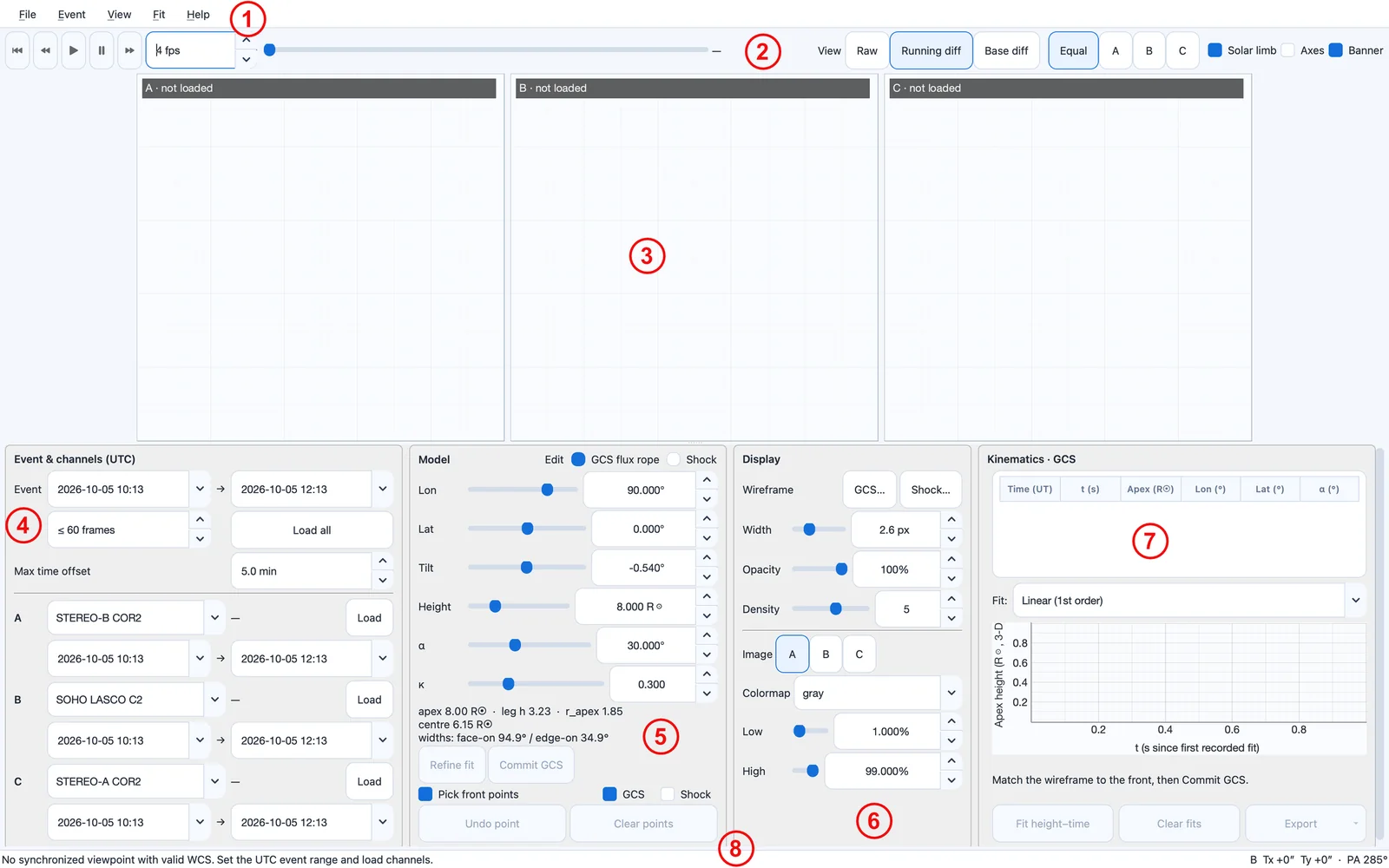
The window is divided into the regions numbered in Figure 20.1 and described in Table 20.1.
| No. | Region | Description |
|---|---|---|
| 1 | Menu bar | File, Event, View, Fit and Help (Section 20.7). |
| 2 | Toolbar | Playback, the shared time, image mode, layout and overlay toggles (Section 20.3). |
| 3 | Viewpoint panels | Panels A, B and C, each showing one channel’s image nearest the shared time, with the models drawn on it. |
| 4 | Event & channels card | Event range, frame cap, time-offset limit and the three channels (Section 20.4). |
| 5 | Model card | The edited model, its parameters, front-point controls, Refine fit and Commit (Chapter 21). |
| 6 | Display card | Wireframe colors and style, and each image’s color map and contrast (Section 20.6). |
| 7 | Kinematics card | Recorded fits, height–time graph and fit (Section 21.6). |
| 8 | Status bar | Messages, including the views taking part in a fit and their separations, and the helioprojective position under the cursor. |
Toolbar
- Playback
-
first frame (
Home), previous (←), play and pause (Space), next (→), and the playback speed (1–30 fps; default 4 fps). With fits recorded, the model follows them during playback. - Time slider and time label
-
step through the event. Every panel shows its own image nearest the selected UTC time, which is displayed beside the slider.
- View
-
Raw (the images as downloaded), Running diff (each image minus the previous one; selected whenever images load) or Base diff (each image minus the first of the sequence).
- Layout
-
Equal shows three equal images with the cards beneath (
0); A, B or C enlarges that panel, stacks the other two beside it and moves the cards to the right (1–3). - Solar limb, Axes, Banner
-
outline the photosphere in every image (on by default; the reference against which a CME’s height is judged), show arcsecond axes around each image, and show the information banner across the top of each image (
B).
The keys apply while an image has keyboard focus.
Loading the viewpoints
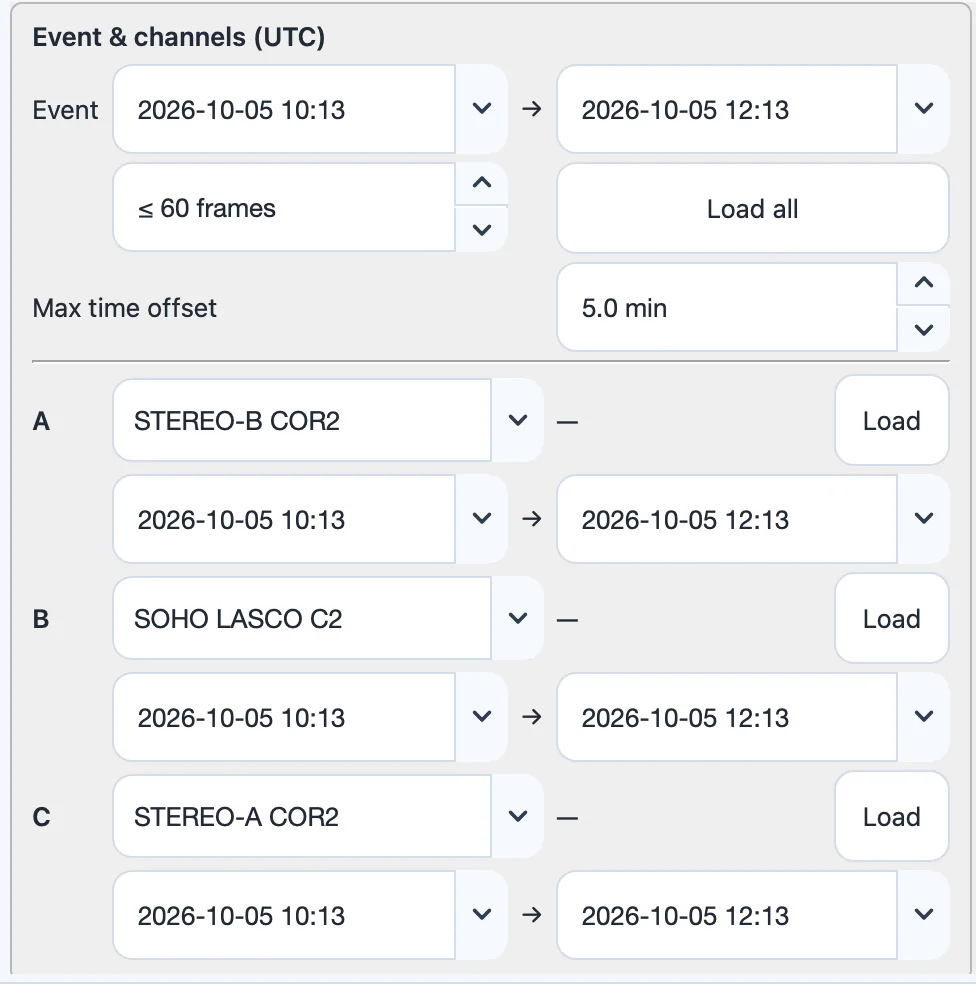
The Event & channels (UTC) card (Figure 20.2) defines what is loaded.
- Event
-
the UTC start and end of the event, up to three days. Changing them sets every channel’s range; each channel’s range can then be adjusted on its own.
- frames
-
the maximum number of images per channel (2–200; default 60). A longer sequence is thinned evenly across the event rather than cut short.
- Load all
-
(
Ctrl+L) loads every channel. Each channel also has its own Load button and a frame count. Event > Cancel downloads stops a slow load. - Max time offset
-
the largest difference between an image’s time and the shared time for the image to take part in a fit (0–60 min; default 5 min). Models are still drawn on the other panels for comparison. Use a smaller value for a fast-evolving CME; the default is a workflow choice, not an accuracy guarantee.
- A, B, C
-
the channel of each panel and its time range.
The available channels are listed in Table 20.2. By default panels A, B and C show STEREO-B COR2, SOHO LASCO C2 and STEREO-A COR2, left to right. Channels without data for the event date are grayed out. The STEREO-B archive ends on 27 September 2014, so for later events panel A reports that it has no data; only SOHO and STEREO-A then remain as vantage points, and another channel in panel A (LASCO C3 or COR1-A) adds an image but not a new viewing direction.
| Channel | Available |
|---|---|
| SOHO LASCO C2 | from 21 February 1997 |
| SOHO LASCO C3 | from 20 February 1997 |
| STEREO-A COR1 | from 4 December 2006 |
| STEREO-A COR2 | from 29 December 2006 |
| STEREO-B COR1 | 12 December 2006 to 27 September 2014 |
| STEREO-B COR2 | 10 January 2007 to 27 September 2014 |
The images are Helioviewer JPEG2000 files, so loading needs network access; downloaded images are cached and reused. Changing a channel’s source or range discards its loaded images and any pending results. A 15-minute e-CALLISTO file spans only one or two coronagraph images (about one every 15 minutes for COR2 and every 12 minutes for LASCO C2), so widen the range to follow a CME.
Reading the images
The banner across each image gives the instrument, the actual observation time, its offset from the shared time and the difference reference. In running difference the first image of each channel is differenced against the archive image just before the range, and is shown raw only when no earlier image exists. Clicked front points belong to the image on which they were clicked and return when that image is shown again.
The Display card
- Wireframe
-
GCS… and Shock… choose the colors of the two models (orange and sky blue by default); Width (0.5–8 px), Opacity (10–100%) and Density (mesh density, 1–8) set the wireframe style.
- Image A, B, C
-
select a panel, then set its Colormap and contrast sliders. Every load resets the color map to gray.
Menus
| Command | Function | Shortcut |
|---|---|---|
| File > Export analysis JSON… | Parameters, points and provenance of both models. | Ctrl+Shift+S |
| File > Export recorded fits CSV… | Recorded series of the edited model. | |
| File > Export height–time graph… | Height–time graph with the chosen fit. | |
| File > Save viewpoint snapshot… | The three views as shown. | |
| File > Export movie (GIF/MP4)… | Movie of the event with recorded shells. | |
| File > Export fitting report (PDF)… | Complete fitting report. | |
| File > Close window | Close the window. | Ctrl+W |
| Event > Load all channels | Load every channel. | Ctrl+L |
| Event > Cancel downloads | Stop running loads. | |
| Event > Apply event range to all channels | Reset every channel to the event range. | |
| Event > Go to UTC time… | Jump to the image nearest a typed time. | Ctrl+G |
| Event > First / Previous / Next / Last frame, Play / pause | Navigation and playback. | Space |
| View > Raw / Running difference / Base difference | Image mode. | |
| View > Equal viewpoints / Focus A / Focus B / Focus C | Layout. | 0–3 |
| View > GCS wireframe / Shock wireframe / Solar limb / Arcsecond axes / Image banners | Overlay toggles. | B |
| View > Reset image zoom, Fit layout to window | Restore the zoom and the panel sizes. | |
| Fit > Edit GCS flux rope / Edit shock | Choose the model to edit. | |
| Fit > Pick front points | Toggle point picking. | |
| Fit > Undo last front point | Remove the last point clicked in any panel. | Ctrl+Z |
| Fit > Clear current front points | Remove the edited model’s points. | |
| Fit > Refine current model | Least-squares refinement. | Ctrl+R |
| Fit > Record fit at current time | Commit the fit. | Ctrl+Return |
| Fit > Restore / Delete recorded fit at current time | Revisit or remove a recorded fit. | |
| Fit > Reset model parameters | Reset the edited model. | |
| Fit > Fit recorded heights over time | Kinematic fit. | |
| Help > Fitting workflow and scientific limits… | Summary of the procedure and its limits. | F1 |