
The e-CALLISTO FITS Downloader
The e-CALLISTO FITS Downloader retrieves FITS files directly from the e-CALLISTO data archive. Open it with the Download toolbar tool, Download > Launch FITS Downloader, or Solar Events > Radio Bursts > e-CALLISTO.
The window has four tabs — Single Station, Multi-Station Event, Spectral Overview and Burst List — described in the sections below. Station lists are read from the archive whenever a date changes, so they offer only the stations that have data on the chosen UTC days; a line under the date reports how many, for example 42 stations have data on 2026-10-04 (UTC).
Common features
The download cache
Previewed and downloaded files are kept in a persistent cache on disk, so re-previewing, importing or extending a dataset never fetches the same file twice. The size of the cache is shown at the bottom left of the window (Cache: …). Open Cache Folder opens the cache in the file manager and Clear Cache empties it.
Preview, download, import and compare
The tabs share four actions on the files you have ticked:
- Preview
-
opens the FITS Preview window with a background-subtracted spectrogram of the selection. A selection that can be combined in time, in frequency or in both is previewed as it would be imported; otherwise each file appears in its own tab.
- Download
-
asks for a folder (Select Download Folder) and saves the files there.
- Import
-
loads the selection into the main window, combining it automatically when possible (Section 5.3). Gap and overlap options are requested when needed.
- Compare
-
opens the Multi-Station Comparison with the selection (Chapter 12).
During downloads a progress panel shows the overall progress, transfer statistics and an estimated time remaining; Show file details expands a table with the progress, speed and status of every file.
Single Station
The Single Station tab (Figure 11.1) lists all files of one station for a complete UTC day.
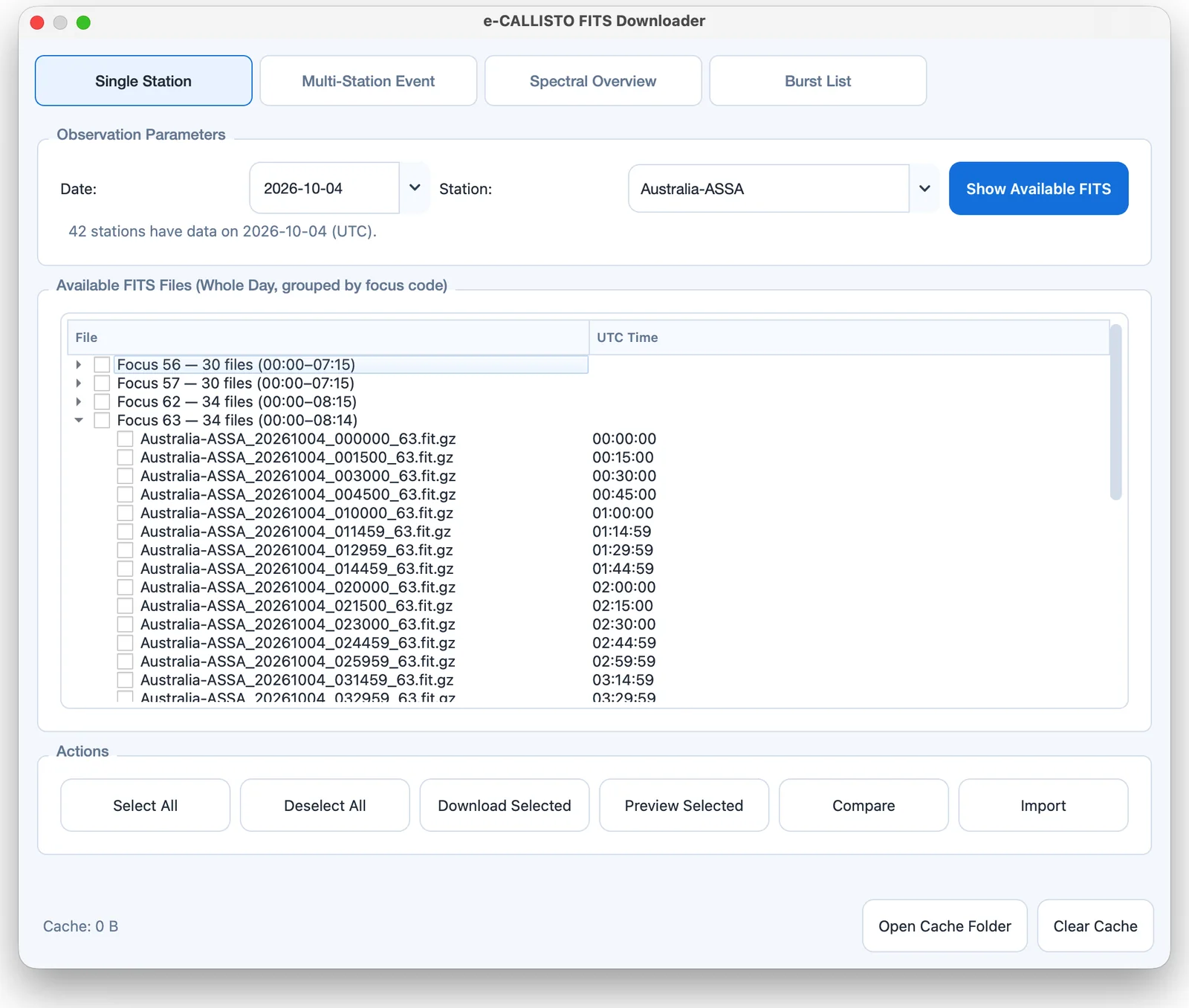
In Observation Parameters, choose the Date and then the Station.
Click Show Available FITS.
In Available FITS Files (Whole Day, grouped by focus code), expand a focus code and tick files, or tick a whole focus-code group. Each group heading shows the number of files and the time span covered, for example Focus 63 — 34 files (00:00–08:14), so the receivers that covered an event are visible at a glance.
Use the buttons in Actions: Select All, Deselect All, Download Selected, Preview Selected, Compare or Import.
When several files are ticked, the downloader determines whether they can be combined in time, in frequency or in both, using the rules of Section 5.3. Files that cannot be combined are reported with an explanation (Figure 5.1).
Multi-Station Event
The Multi-Station Event tab (Figure 11.2) finds the files recorded by several stations during the same event in a single search.
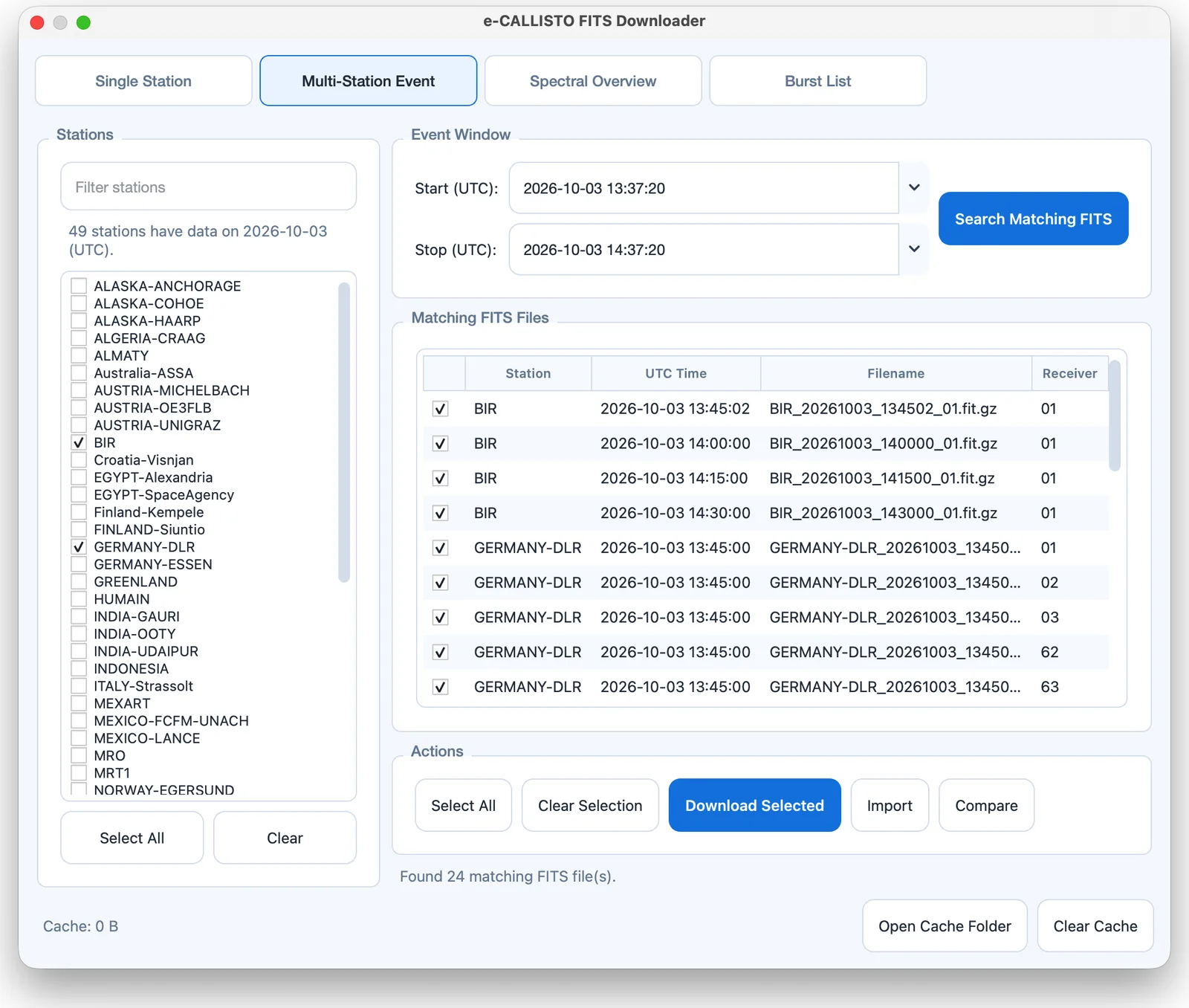
In Event Window, set Start (UTC) and Stop (UTC). The station list is updated to the stations with data in that window (windows of up to seven days).
In Stations, tick the stations to search. Filter stations narrows the list by name; Select All and Clear tick or untick all stations.
Click Search Matching FITS. The Matching FITS Files table lists the station, UTC time, file name and receiver (focus code) of every file overlapping the window.
Use Select All, Clear Selection, Download Selected, Import or Compare.
A compatible selection is imported directly into the main window, combined in time, in frequency or in both. Files from several stations cannot be combined into one spectrum; use Compare to view them side by side. The comparison workspace opens only when Compare is clicked.
Spectral Overview
The Spectral Overview tab (Figure 11.3) assembles a station’s observations for a complete UTC day into one overview figure.
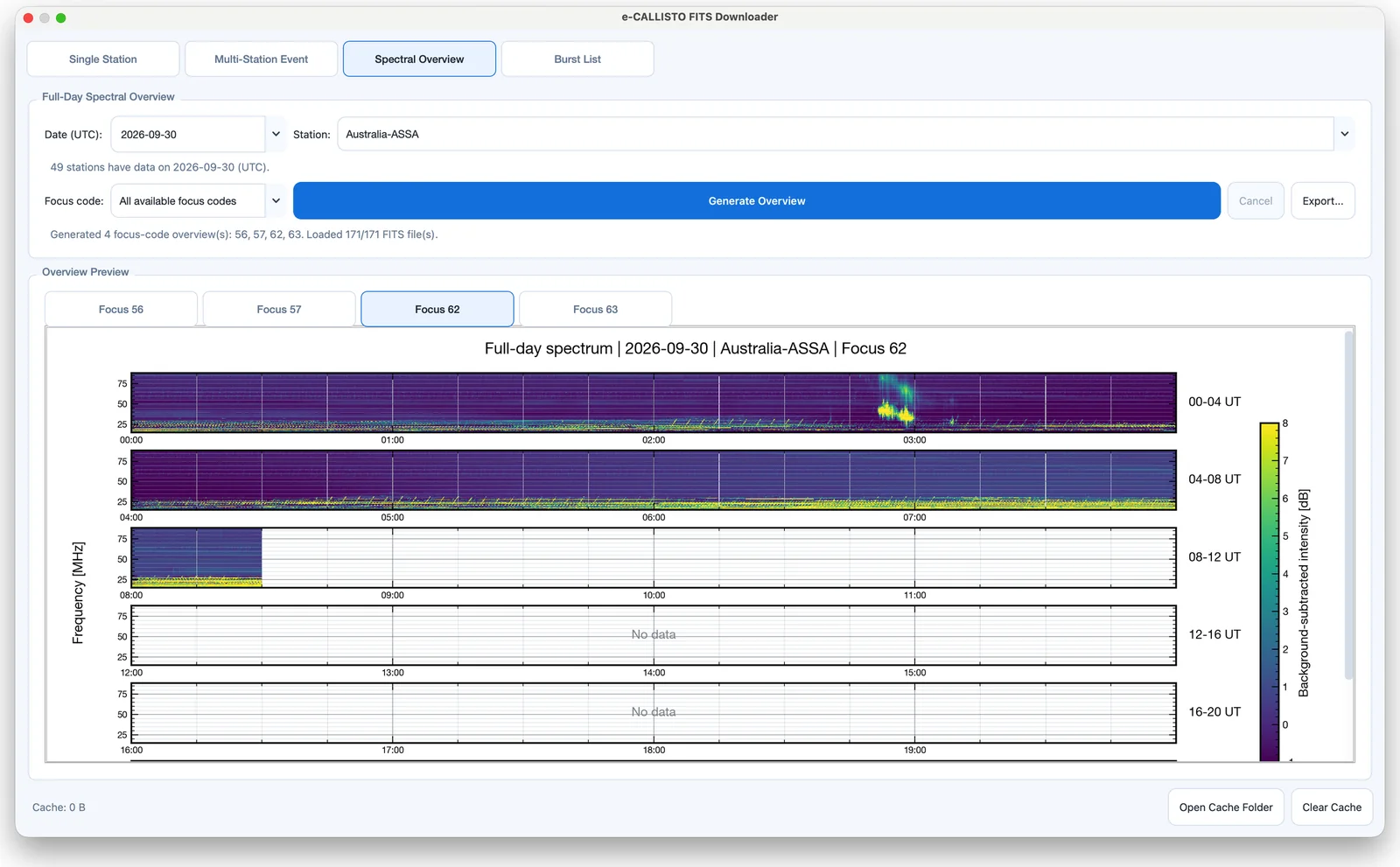
- Date (UTC), Station
-
the day and station to summarize.
- Focus code
-
All available focus codes, or a single focus code to generate or regenerate on its own.
- Generate Overview
-
downloads (or reuses from the cache) every file of the day and builds the overview. The status line reports the focus codes generated and the number of files loaded. Cancel stops a running generation.
- Overview Preview
-
one tab per focus code. Each overview shows the day as six four-hour panels (00–04 UT to 20–24 UT), background-subtracted with a day-wide median (dB) baseline and a common color scale; intervals without data are marked No data.
- Export...
-
saves the overview of the selected tab as a PNG, PDF, EPS, SVG or TIFF figure at 300 dpi on a white background.
Burst List
The Burst List tab (Figure 11.4) gives access to the e-CALLISTO solar radio burst catalog compiled by C. Monstein (Monstein, n.d.), so that the FITS files for a listed burst can be found together with its type and reporting stations. The Monstein source catalog link opens the original lists in a web browser.
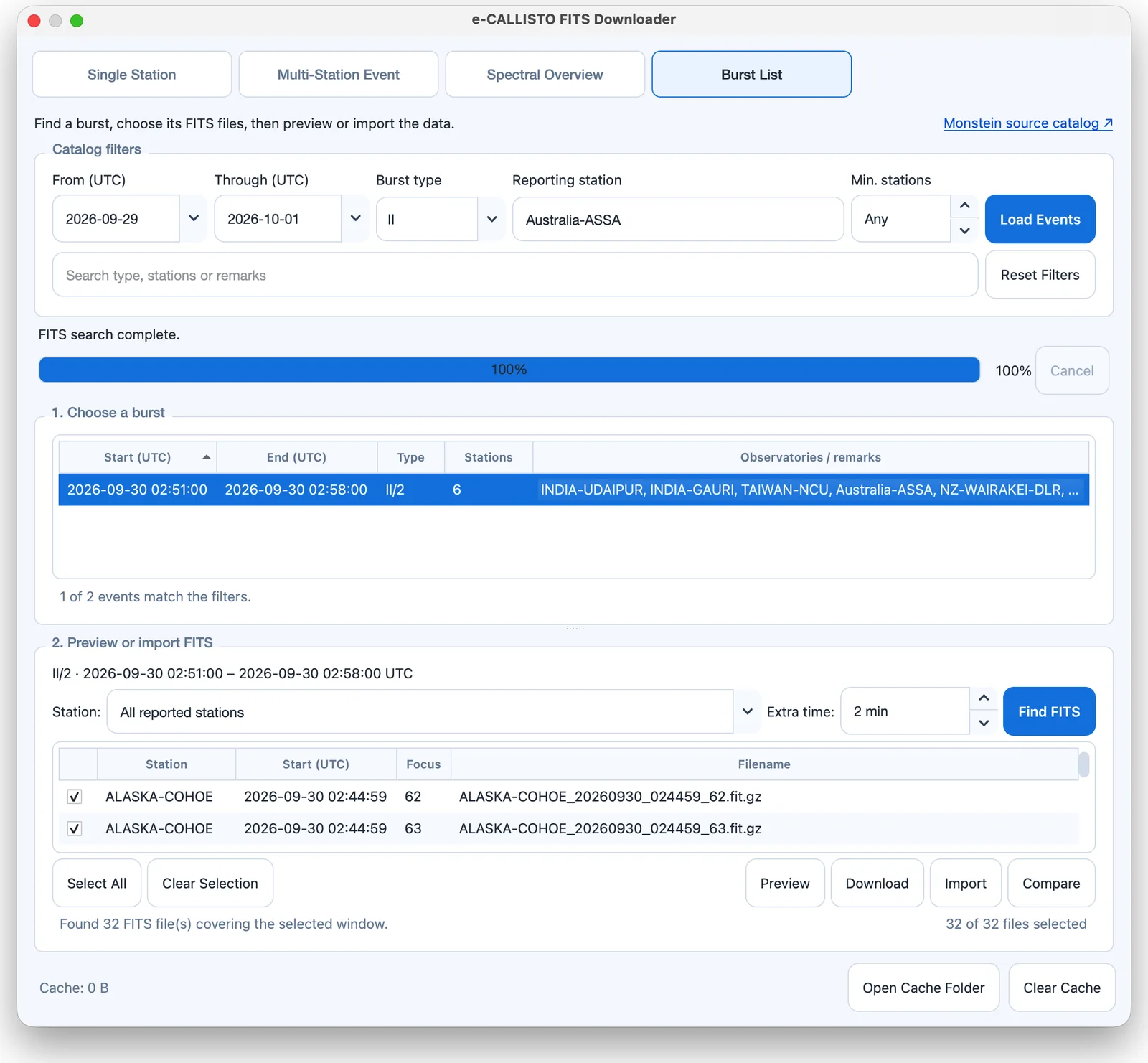
Catalog filters
- From (UTC), Through (UTC)
-
the date range to load; click Load Events.
- Burst type
-
All types or one of the burst types found in the loaded catalog (for example II or III).
- Reporting station
-
events reported by a given station.
- Min. stations
-
events reported by at least this many stations (Any for no limit).
- Search
-
free-text search in the type, stations or remarks.
- Reset Filters
-
clears the filters while keeping the selected dates.
A progress bar with a Cancel button reports catalog loading, FITS searches, preview preparation and downloads. The final state remains visible after completion.
1. Choose a burst
The event table lists the start and end time (UTC), type, number of stations, and the observatories and remarks of each matching event, with a count such as 1 of 2 events match the filters. Hovering over a row shows the original catalog record and its source URL. Missing periods, source notices and loading errors are reported below the table.
2. Preview or import FITS
- Station
-
All reported stations, one of them, or the name of any archive station typed in the box.
- Extra time
-
padding added on both sides of the burst (0–120 min, default 2 min).
- Find FITS
-
searches the archive. Overlapping 15-minute files and events that cross UTC midnight are included. The table lists the station, start time, focus code and file name of each file found.
- Select All, Clear Selection, Preview, Download, Import, Compare
-
act on the ticked files as described above; the number of selected files is shown.
The divider between the two tables can be dragged to resize them.
Note
Catalog coverage varies by year, station and type information may be unavailable in older lists, and a listed detection does not guarantee that matching FITS data are archived. Catalog times are UTC with one-minute precision.